Your Calendar turns your yhp.link into a scheduling tool, so leads can book time with you directly instead of playing phone or DM tag. This article covers what Calendar does and where to go for each part of it.
What Calendar does
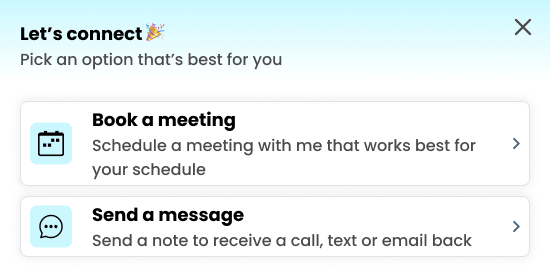
When Calendar is turned on, anyone who lands on your YHP page and taps to connect with you sees a popup asking whether they want to book a meeting or just send a message. If they choose to book, they see your real, live availability, pick a time, and confirm, all without a single back-and-forth text.
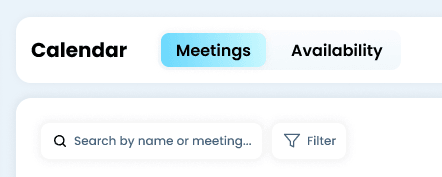
The two tabs
Calendar has two tabs:
- Meetings: every meeting a lead books through your link, listed by date. This is your day-to-day view.
- Availability: the settings that control when leads can book, including your hours, meeting length, how far in advance leads can book, blackout dates, your time zone, and the master on/off switch for booking.
What leads see
Here's the flow a lead goes through when they tap to connect with you:
- They choose an option. A "Let's connect" popup gives them two choices: Book a meeting or Send a message.
- If they book a meeting, they pick a date and time from your real availability, shown in the time zone you've set (for example, EDT).
- They answer two quick questions: their timeline to buy or sell (0-1 mo., 1-3 mo., 3-6 mo., 6+ mo.) and their price range (Under $300K, $300K-$600K, $600K-$1M, $1M+, or Not sure).
- They click Continue to confirm the booking.
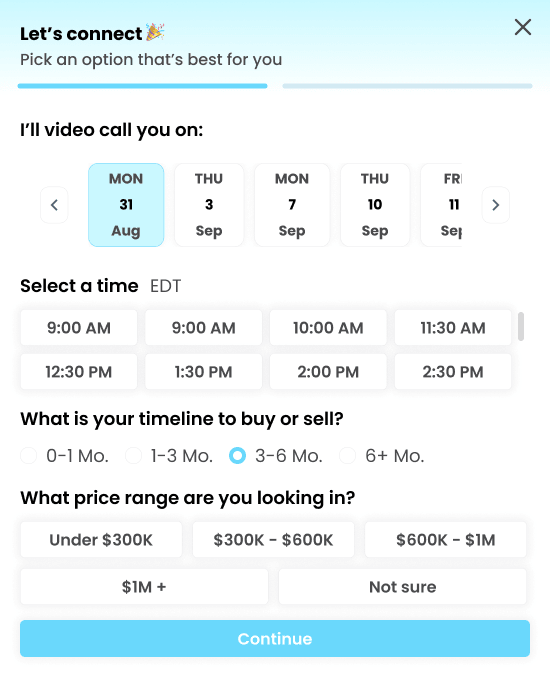
Those two questions mean every meeting that lands on your calendar already comes pre-qualified, so you know their timeline and budget before you ever say hello.
If a lead chooses Send a message instead, they can leave a note asking for a call, text, or email back rather than booking a specific time.
Quick setup checklist
- Connect your calendar so YHP knows when you're actually free (see Set your availability).
- Set your weekly hours and time zone.
- Set your meeting length, booking window, and meeting location (see Configure meeting settings).
- Add any blackout dates for vacations or time off (see Blackout dates).
- Turn on Allow leads to schedule meetings.
- Click Copy link and share it.