Your availability settings control when leads can book meetings with you. Set them once and your booking link updates instantly.
Turn booking on or off
At the top of the Availability tab is Allow leads to schedule meetings, the master switch for your whole booking link.
- On: leads can open your booking link and grab a time.
- Off: your booking link stops taking new appointments, and the rest of the settings on this page lock until you turn it back on.
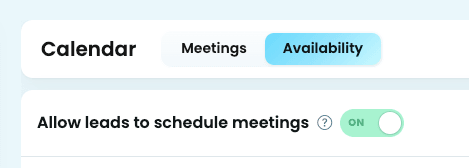
Going on vacation or just need a break from new bookings? Turning this off is faster than clearing your whole calendar, and meetings you already have booked aren't affected.
Set your weekly hours
Under Weekly hours, each day of the week has its own toggle and time range.
- Toggle a day On if you take meetings that day, Off if you don't.
- For each day that's on, set a start time and end time from the dropdowns.
- Click the + next to a day to add a second time window on the same day, like a morning block and an evening block with a gap in between.
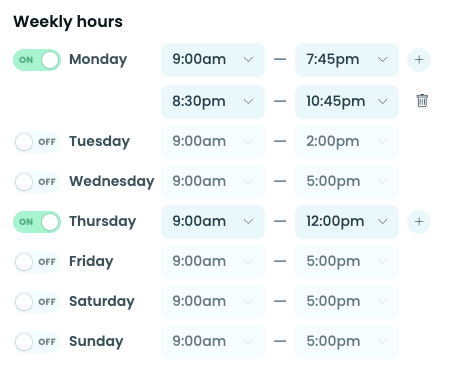
For example: Monday to Friday on, 9:00am to 5:00pm, with Saturday and Sunday off.
Set your time zone
Under Time Zone, choose the zone your hours are set in (for example, Eastern Time (US & Canada)). This is the zone leads see when they pick a time on your booking link, so make sure it matches where you actually are.
Saving your changes
None of your changes take effect until you click Save availability. If you have edits that haven't been saved yet, you'll see an Unsaved changes note next to the button.
If you navigate away before clicking Save availability, your changes won't apply to your live booking link.
Your connected calendar
At the bottom of the Availability tab, Connected calendar shows the email address YHP is reading your availability from (for example, carter@yourhomepage.ai). This keeps leads from booking over meetings you already have on that calendar.
- Reconnect: use this if your calendar stops syncing, or if you've changed your calendar account's permissions.
- Disconnect: removes the connection entirely. Do this only if you're switching to a different calendar account.
