Blackout dates block off whole days so leads can't book anything during that window. They're useful for vacation, travel, or any stretch where you're fully out.
What blackout dates do
A blackout date removes every bookable slot on the days you choose, even if those days would normally fall within your weekly hours. Leads simply won't see those dates as an option on your booking link.
How to add one
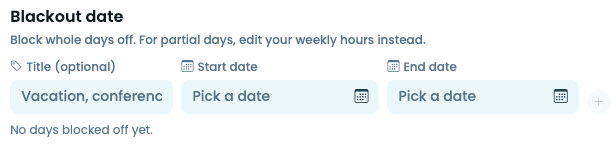
- On the Availability tab, scroll to Blackout date.
- Optionally, give it a title (for example, "Family vacation") so you remember what it's for later.
- Set a start date and an end date.
- Click + Add dates.
- Click Save availability so the change goes live.
Don't forget to click Save availability after adding dates. Adding a blackout date doesn't save on its own.
Blackout dates vs. weekly hours
Blackout dates are for whole days off. If you just need to block part of a day, like a doctor's appointment from 2 to 3pm, edit your Weekly hours for that day instead. Blackout dates don't support partial-day blocks.