Why does my account type matter?
Your Home Page connects to Instagram through Meta, and Meta only allows that connection for professional accounts. There are two kinds of professional account, Business and Creator, and Your Home Page works with both.
- Personal: the default for new Instagram accounts. Can be private, and has no Insights or professional dashboard. Doesn't work with YHP.
- Creator: a professional account built for public figures and content creators. Works with YHP.
- Business: a professional account built for businesses and service providers. Works with YHP.
If your account is Personal, you'll need to switch it before you can connect it to Your Home Page. It takes about a minute, and you can switch back anytime.
How do I check what type of Instagram account I have?
The quick look
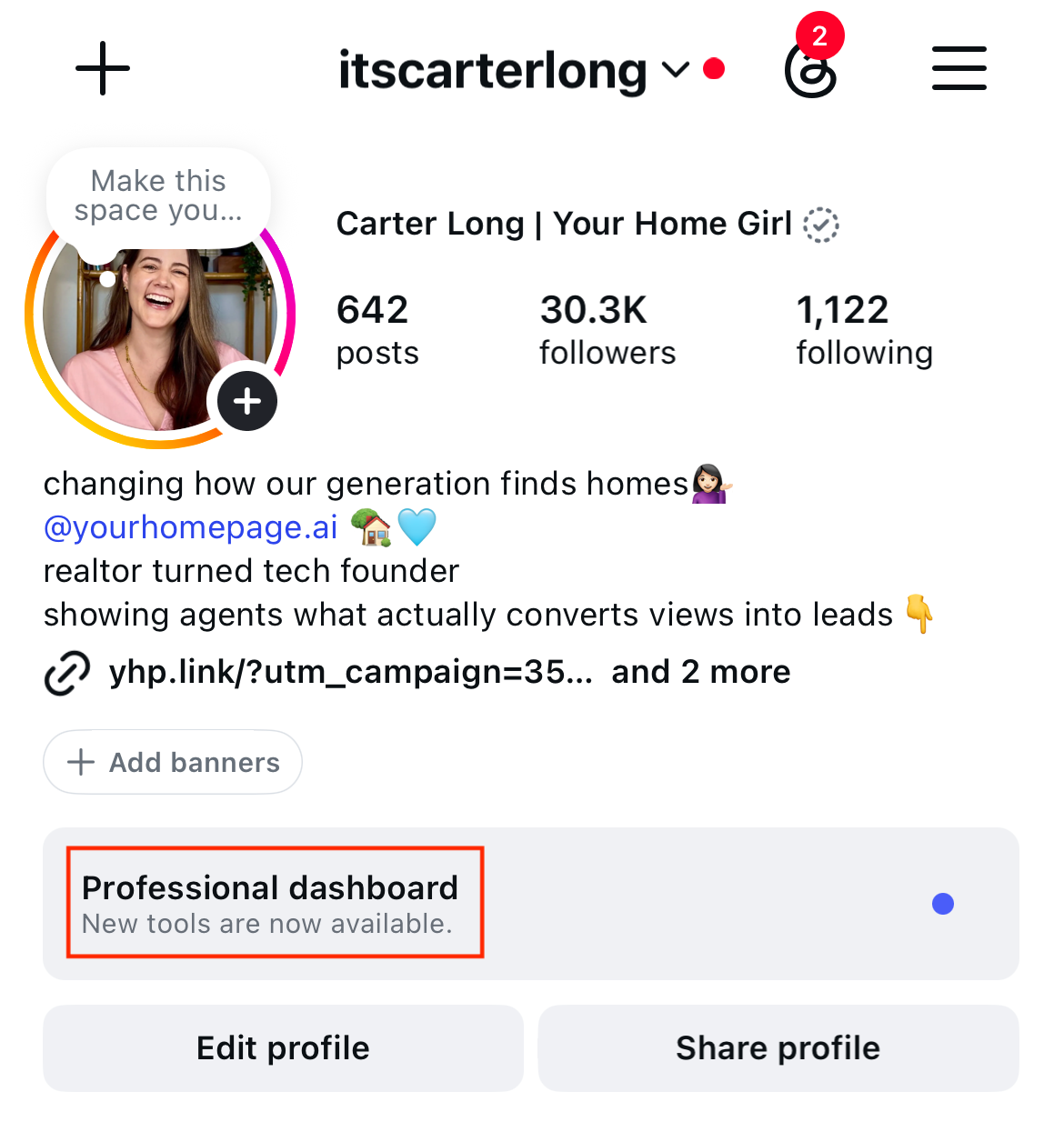
Open your Instagram profile. If you see a Professional dashboard button near the top of your profile, you already have a professional account (Business or Creator). If you don't, you're most likely on a Personal account.
The sure way (Instagram app)
- Tap your profile picture in the bottom right to go to your profile.
- Tap the menu (three lines) in the top right to open Settings and activity.
- Scroll down to For professionals and tap Account type and tools.
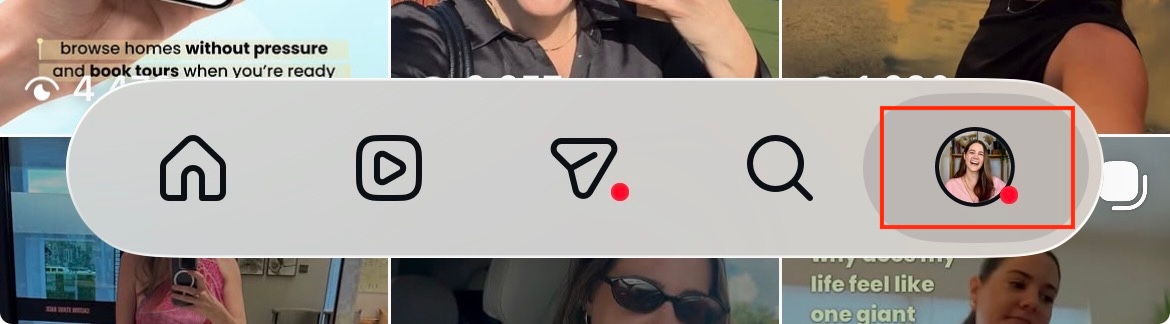
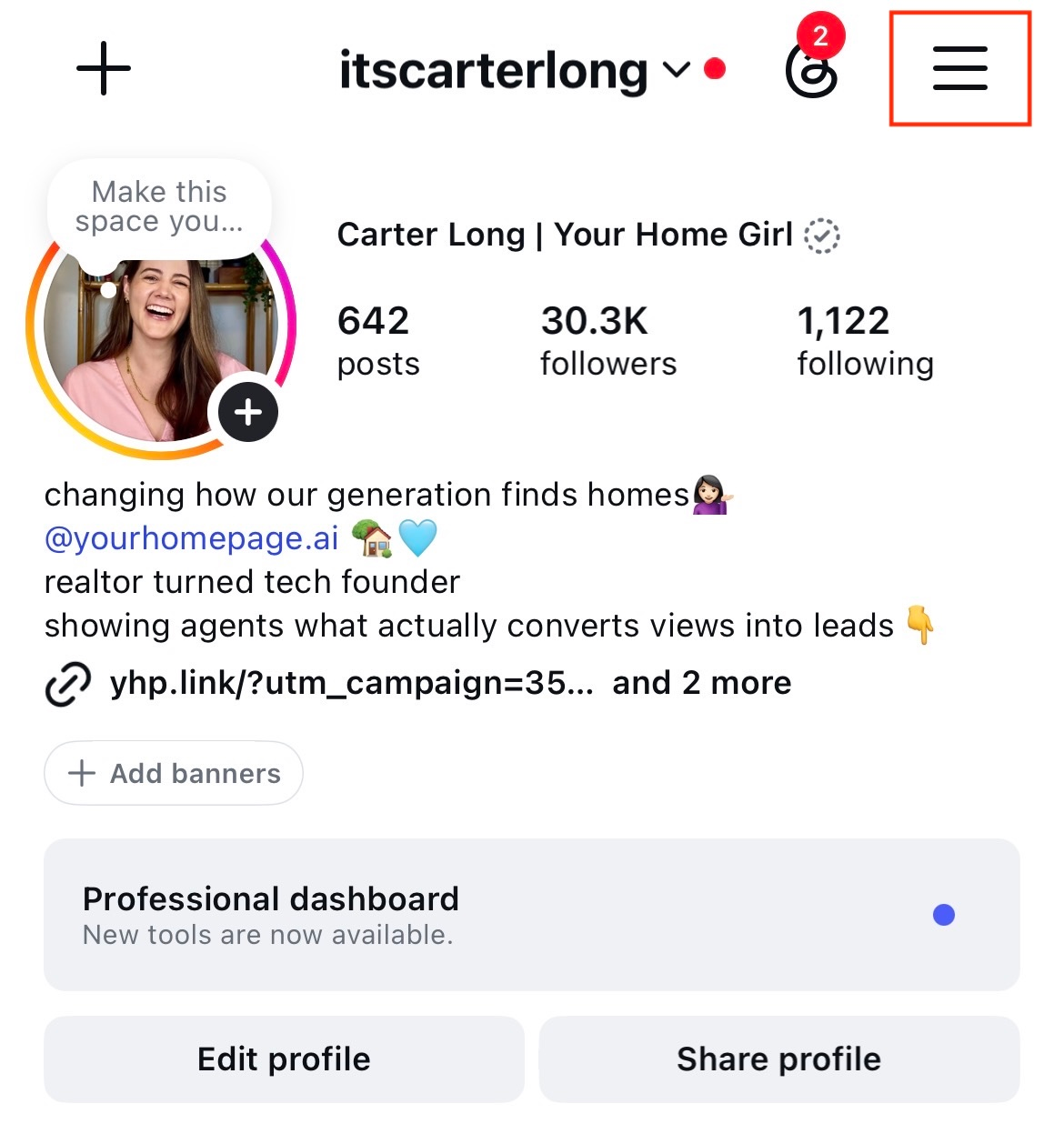
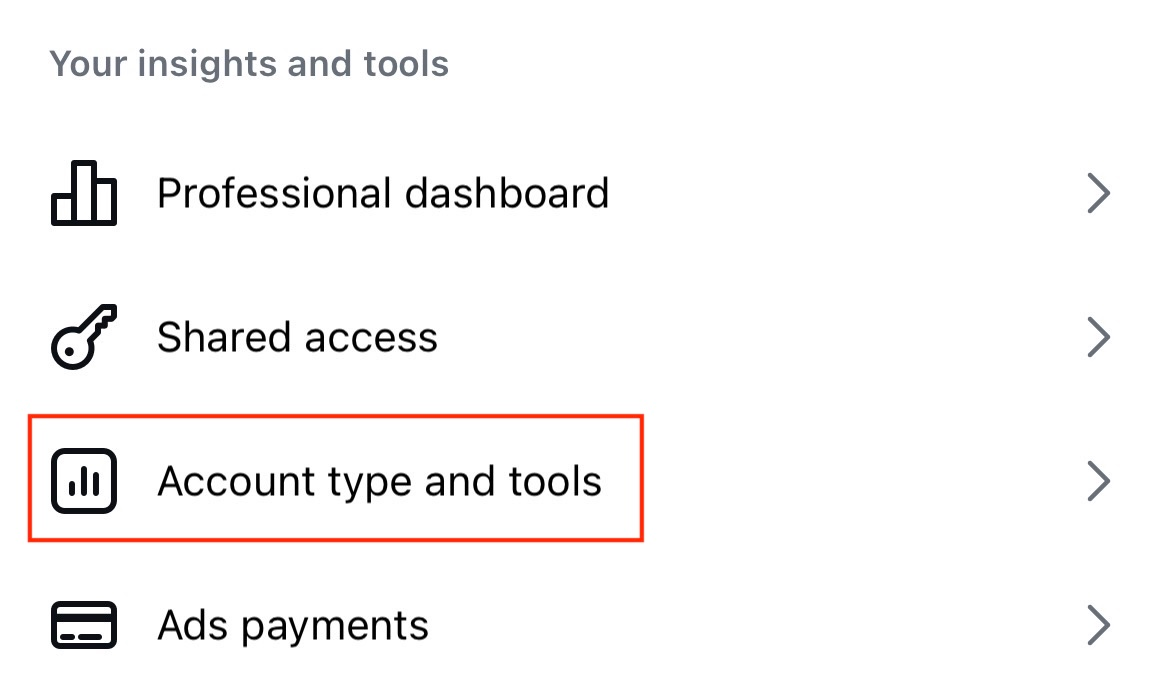
Path: Profile › Settings and activity › For professionals › Account type and tools
What you'll see there:
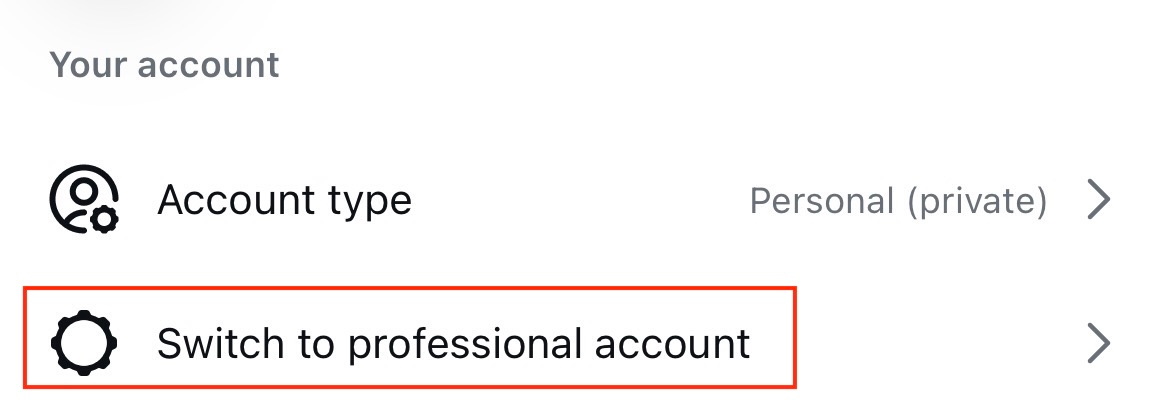
- "Switch to professional account" means you have a Personal account. Follow the steps in the next section.
- "Account type" means you already have a professional account. Tap it to see whether you're set to Business or Creator, either one works with Your Home Page.
Source: Set up a professional Instagram account, Instagram Help Center
How do I switch to a professional account?
Professional accounts can't be private. If your account is private, switching will make it public and automatically accept any pending follow requests.
In the Instagram app
- Tap your profile picture in the bottom right.
- Tap the menu to open Settings and activity.
- Below For professionals, tap Account type and tools.
- Tap Switch to professional account.
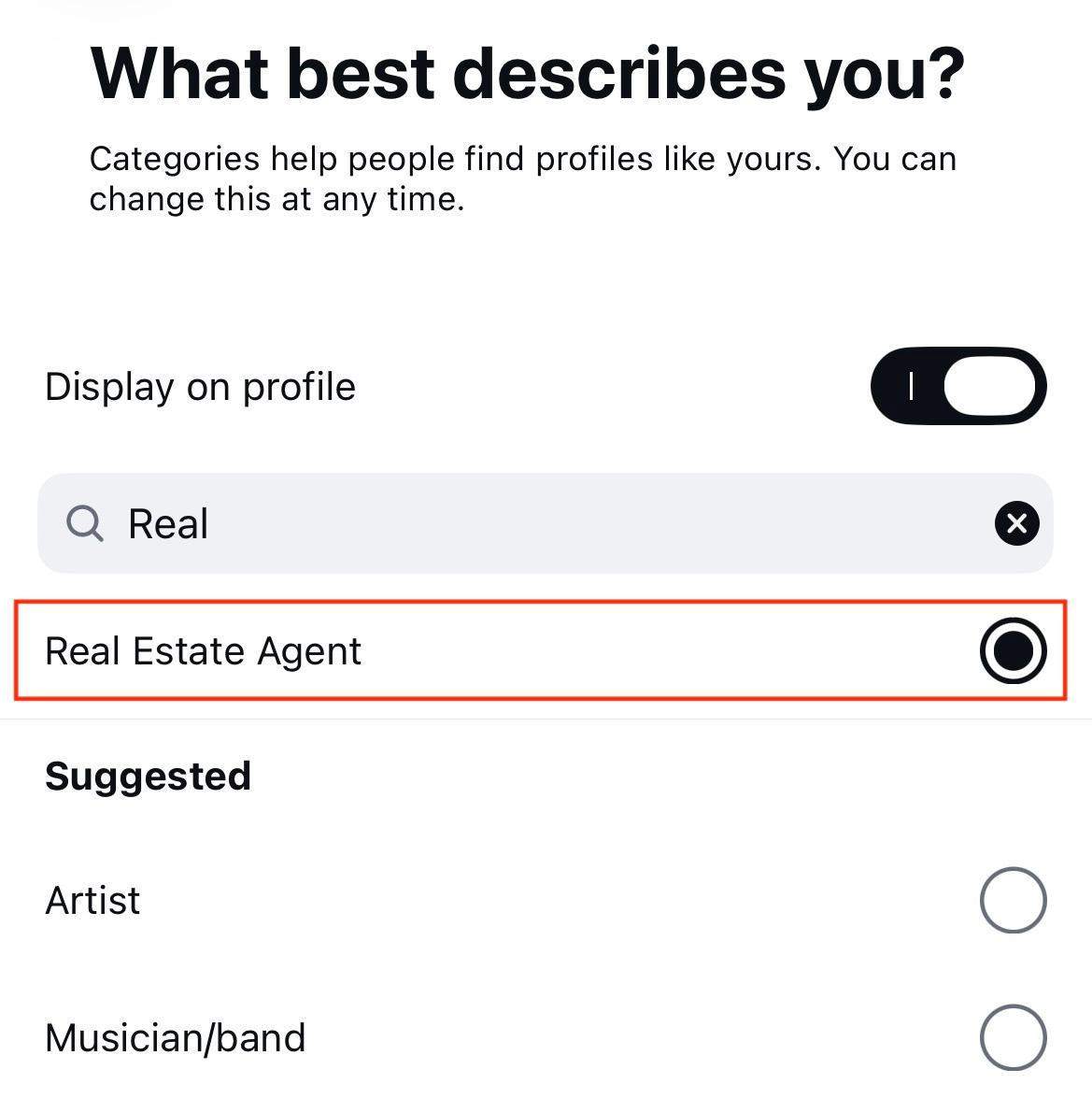
- Pick a category that describes what you do, like Real Estate Agent. The category doesn't decide whether you get a Business or Creator account.
- Choose Business or Creator, then tap Next.
- Add your contact details, or tap Don't use my contact info to skip.
- You'll be asked if you want to connect a Facebook Page. This is optional, tap Skip if you don't have one.
On a computer (instagram.com)
- Click More, then Settings.
- Below For professionals, select Account type and tools.
- Click Switch to professional account.
- Choose Business or Creator, click Next, then pick your category.
- Click Done, then Continue to confirm.
Next step: once you've switched, head back to Your Home Page and connect Instagram from Settings › Connections. See connecting & disconnecting Instagram for the full walkthrough.
Sources: Set up a professional Instagram account and About professional accounts on Instagram, Instagram Help Center
Business or Creator: which should I pick?
Both work with Your Home Page, so pick whichever fits how you show up online. Meta describes Business as best for businesses and service providers, and Creator as best for public figures and content creators. Plenty of agents who build a personal brand choose Creator; teams and brokerages usually choose Business.
You can change between Business and Creator anytime from Account type and tools › Account type › Switch account type.
Avoid switching back to Personal. If you switch to a Personal account, Instagram will disconnect it from Your Home Page and you'll lose access to professional tools like Insights and ads.
I'm trying to log in but I'm not getting a code. What do I do?
When you log in from a new phone or browser, Instagram may send a security code by text (SMS), WhatsApp, or email. If it never arrives, work through these in order.
- Give it a few minutes, then request one new code. Codes can be delayed by weak signal or a busy network. Requesting a bunch of codes back to back can slow things down further, and only the newest code will work.
- Check your spam and promotions folders. If the code or reset link goes to email, look in spam, junk, and promotions. Meta also suggests asking your email provider to make sure emails from the @instagram.com domain aren't being blocked.
- Make sure it's going to the right place. The code goes to the phone number or email saved on your Instagram account, which might be an old number or a different email than you expect. If you mistyped your email when you first signed up, Meta can't restore access through that email.
- Use a backup code. If you've turned on two-factor authentication and a code can't be delivered, Meta lets you log in with one of your saved backup codes instead. Look for a screenshot or note you may have saved when you set up two-factor authentication.
- Approve the login from a device you're already on. If you're still logged into Instagram on another phone, tablet, or computer, check it for a login request you can confirm. If you set up an authentication app (like Google Authenticator or Duo Mobile), open it and use the code it shows.
- Try another login option. On the login screen, tap Forgot password? or look for the option to try another way. If your Instagram is linked to Facebook, you can verify through Facebook instead.
- Ask Meta's support assistant. Meta's help pages include a Chat with Meta AI support assistant option for account access issues. If you think someone else got into your account, go to instagram.com/hacked.
Your Home Page can't send, resend, or see Instagram login codes. Only Meta can restore access to your Instagram account.
Sources: I can't log in, Didn't receive the password reset email, Use a backup code, Two-factor authentication, Instagram Help Center
What if I lost access to the email or phone number on my account?
According to Meta, you have two paths:
- Get the email back first. Use your email provider's "Forgot password?" or "Trouble signing in?" option. Instagram can't help you get back into your email account.
- Update your info once you're in. If you can still get into Instagram (for example, you're logged in on another device or through Facebook), change the email or phone number on your account to one you can access right away.
If you can't reach the email you signed up with and your Instagram isn't linked to Facebook, Meta says it can't give you access to the account.
Source: Lost access to email or phone number linked to Instagram account, Instagram Help Center
How do I avoid getting locked out next time?
A few minutes of setup now saves a lot of stress later, especially if Instagram is where your leads come from.
- Save your backup codes. In Instagram go to Settings › Accounts Center › Password and security › Two-factor authentication, choose your account, then Additional methods › Backup codes. Screenshot them or store them in a password manager.
- Add an authentication app. Meta recommends this method because it doesn't depend on texts arriving.
- Keep your phone number and email current in Accounts Center, especially after changing carriers or brokerages.
- Trust your own devices. When you log in with two-factor authentication on your own phone or computer, tap Trust this device so you won't need a code there next time. Skip this on shared or public devices.
Still stuck?
If you're logged into Instagram but it still won't connect to Your Home Page, email us at support@yourhomepage.ai with your Instagram handle and a screenshot of what you're seeing. We'll help you get connected.