If you see a message saying an Instagram permission is missing, don't worry, your account is still connected. Instagram just didn't give Your Home Page everything it needs to run your automations, so they're paused until that's fixed. It only takes about a minute.
What's going on?
When you connect Instagram, Instagram shows a screen listing everything Your Home Page is asking to access. If any of those boxes gets unchecked, the connection still works, but some features can't run.
The permission most often turned off is Manage comments. Your automations need it to see when someone comments a keyword on your post so they can send that person a DM.
Why am I seeing this now if everything was working before?
Meta, the company behind Instagram, is always updating its platform and adding new features. Sometimes those updates change how permissions work or add a new permission that apps like Your Home Page need. When that happens, you may need to update your permissions so everything keeps running smoothly. You didn't do anything wrong, and nothing is broken, it's just Instagram asking you to confirm access again.
How to fix it
- Log in to your Your Home Page portal, click Your Home Page, then click Profile.
- Click Connect Instagram.
- Log in to Instagram if it asks you to.
- On the Instagram screen, you'll see a list of everything Your Home Page is asking to access. Make sure all of them are turned on. If you see an Edit option, tap it to see the full list.
- Click Allow or Continue to finish.
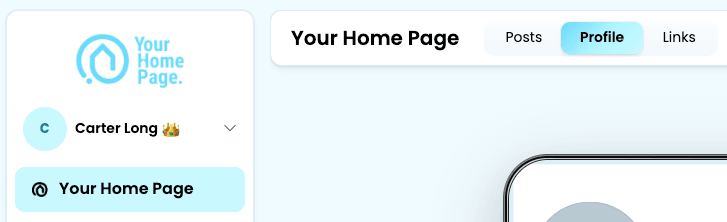
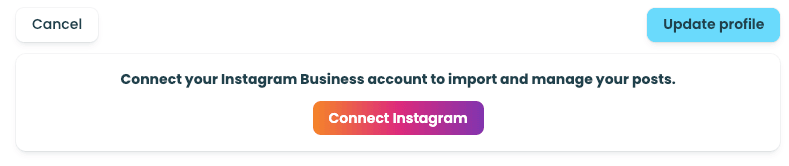
You'll land back in Your Home Page, and your automations will pick up where they left off.
Updated and still seeing the message?
Sometimes Instagram remembers your earlier choices and skips the permission screen, so the missing permission never gets turned back on. To fix this, remove Your Home Page from your Instagram settings, then connect again so Instagram shows you the full permission screen.
On a computer
- Go to instagram.com and log in to the Instagram account that's connected to Your Home Page.
- Click More (☰) in the bottom left corner of the screen.
- Click Settings.
- In the left menu, scroll down and click App and website permissions.
- Click Apps and websites.
- Under the Active tab, find Your Home Page and click Remove.
- Click Remove again to confirm.
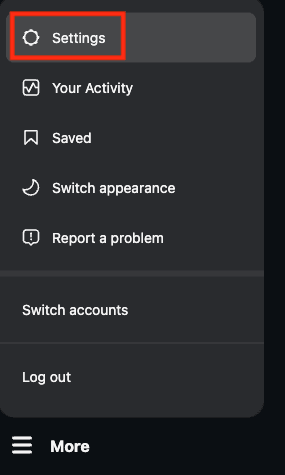
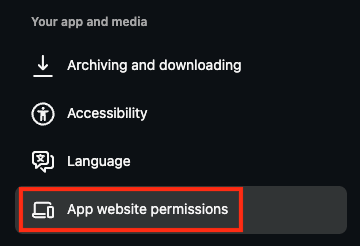
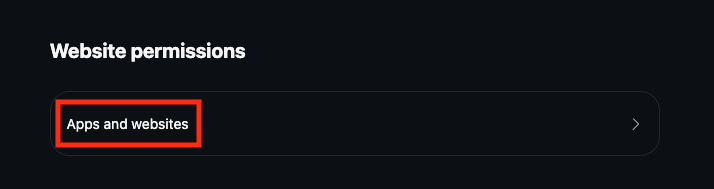
You can also go straight to instagram.com/accounts/manage_access while logged in.
On your phone (Instagram app)
- Open the Instagram app and make sure you're logged in to the account that's connected to Your Home Page.
- Tap your profile picture in the bottom right corner.
- Tap the menu (☰) in the top right corner.
- Tap Settings and activity.
- Scroll down and tap Website permissions.
- Tap Apps and websites.
- Under the Active tab, find Your Home Page and tap Remove.
- Tap Remove again to confirm.
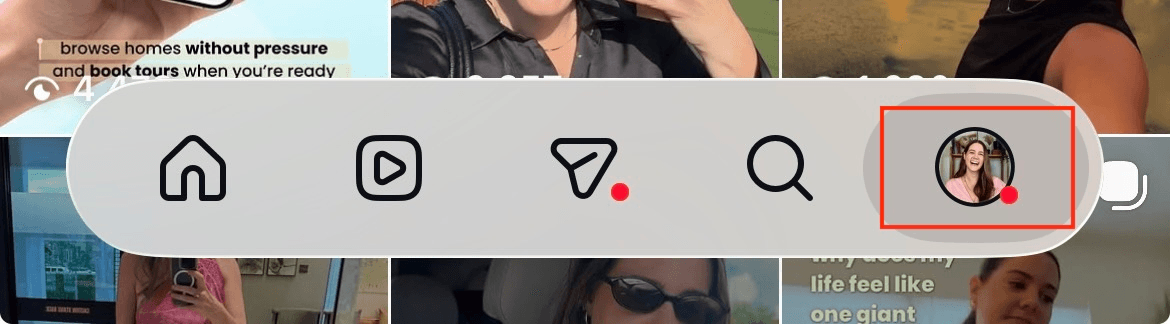
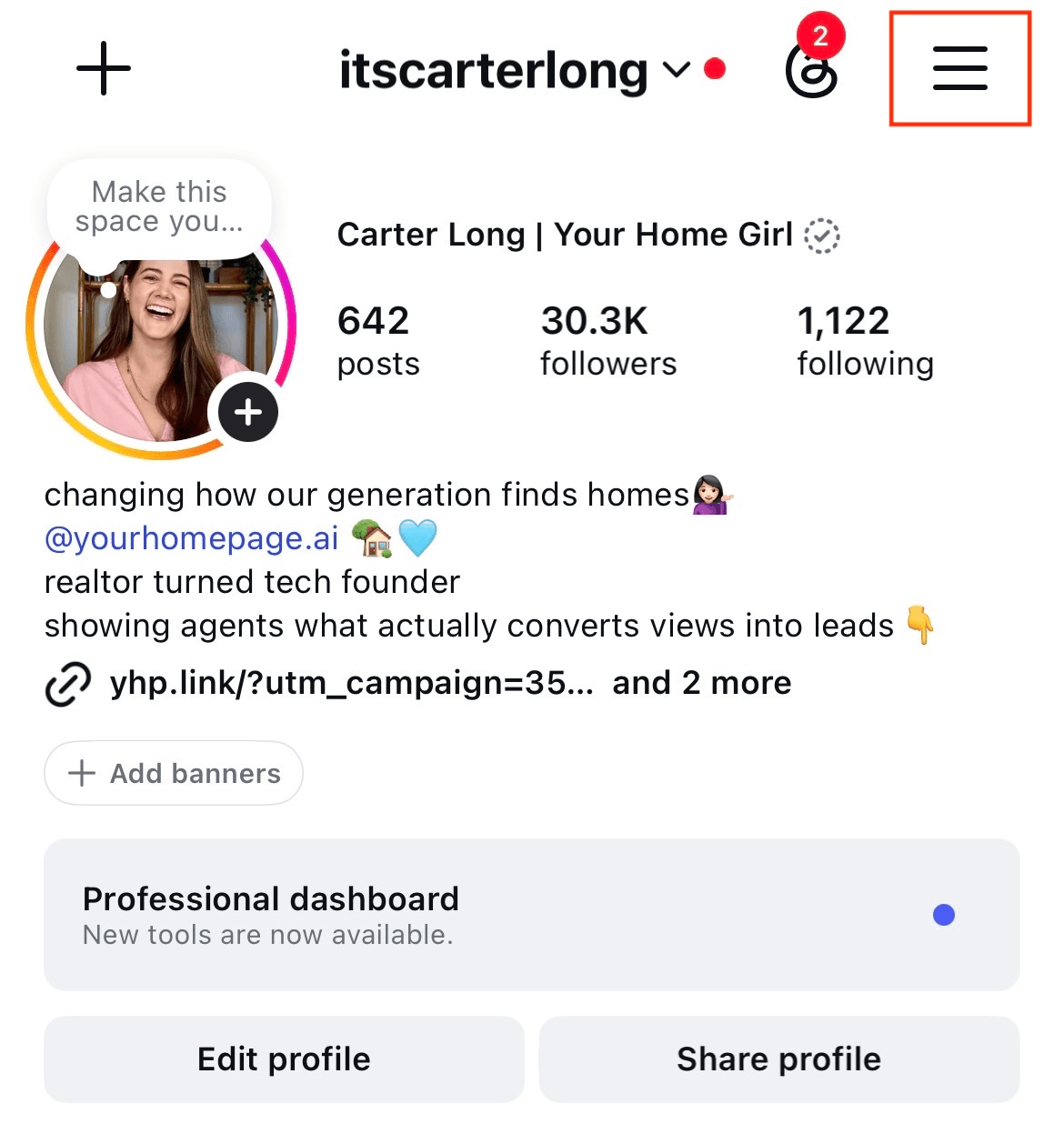
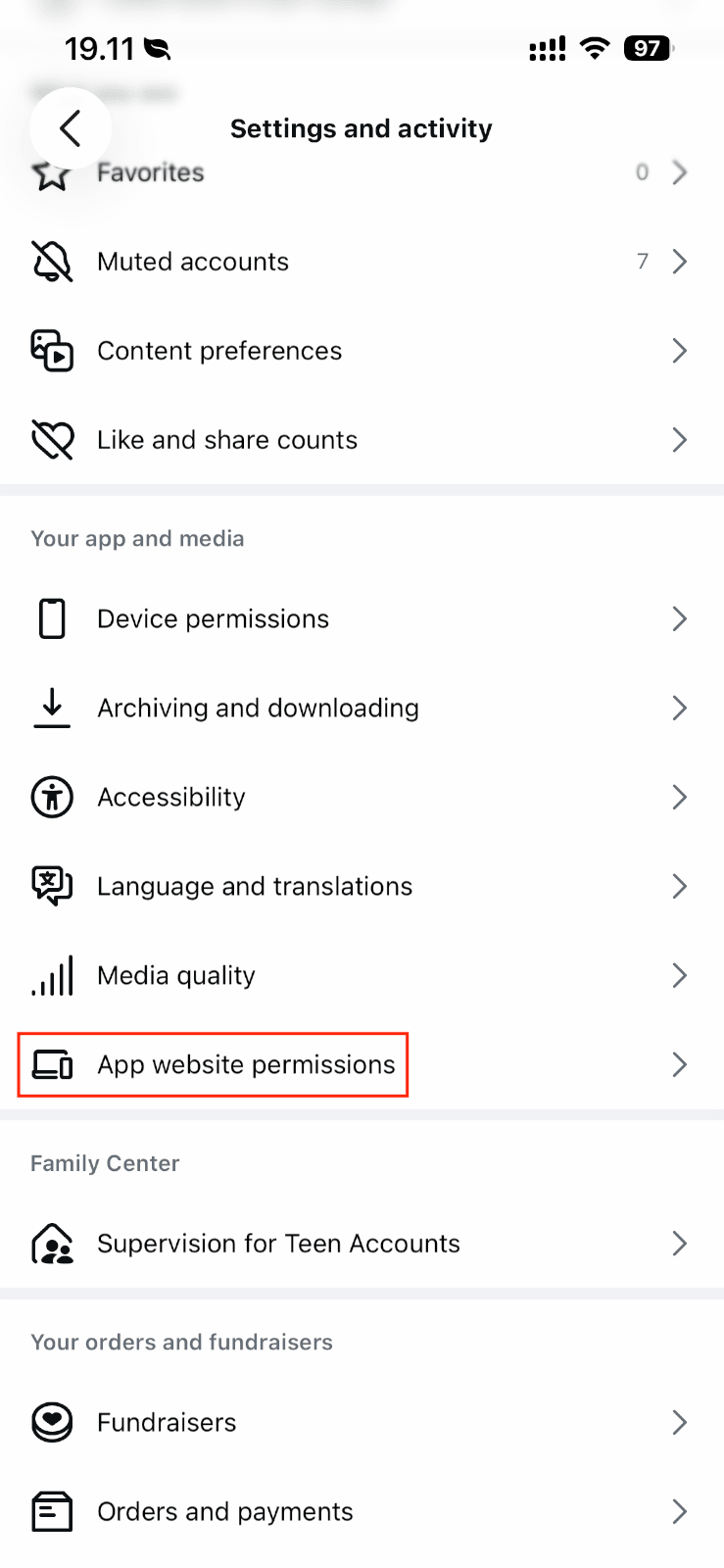
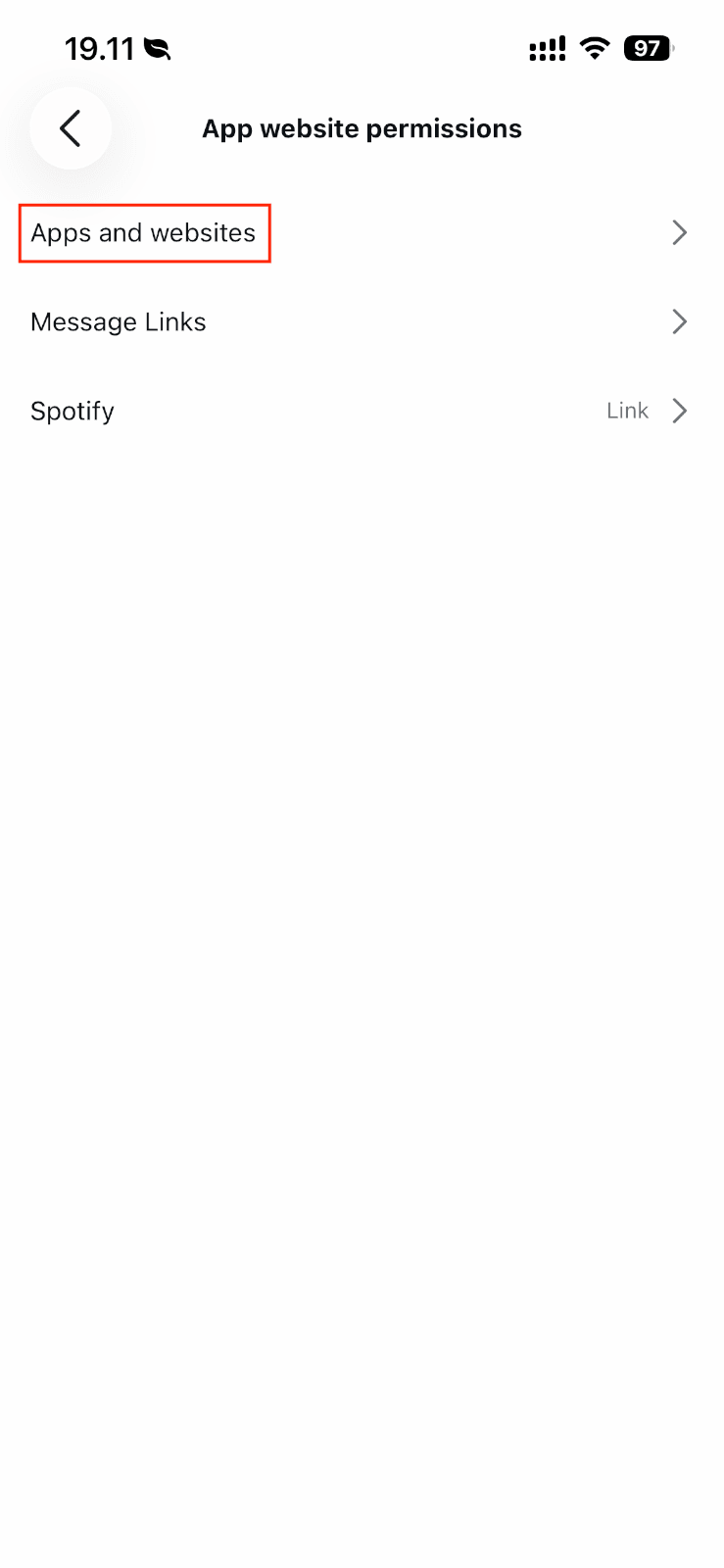
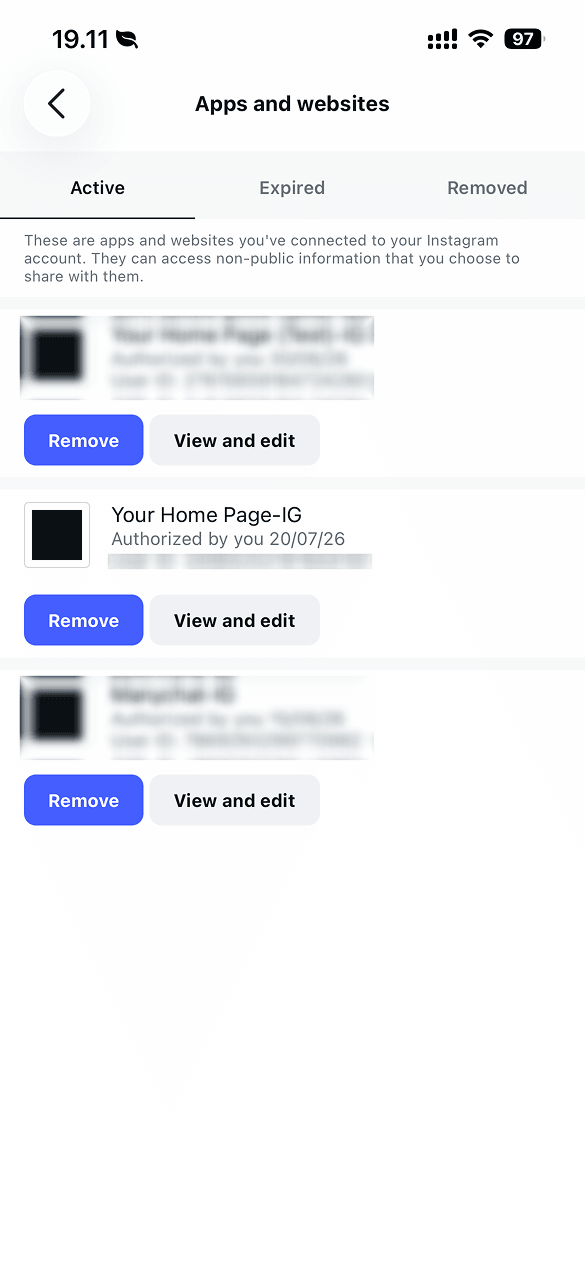
Can't find it? Type "Apps and websites" into the search bar at the top of Settings and activity.
Then reconnect
- Log in to your Your Home Page portal.
- Click Update permissions on the banner or on your Instagram connection card.
- On the Instagram permission screen, leave every box checked. If you see an Edit option, click it and make sure everything is turned on.
- Click Allow. You'll come back to Your Home Page, the banner will disappear, and your automations will start running again.
Make sure you're logged in to the same Instagram account that's connected to Your Home Page. If you manage more than one account, Instagram may log you in to a different one.
Switch to the right Instagram account
If you manage more than one Instagram account, you may have logged in to the wrong one. To switch accounts:
- Long-press your profile in the bottom navigation bar.
- Choose the account that's connected to Your Home Page.
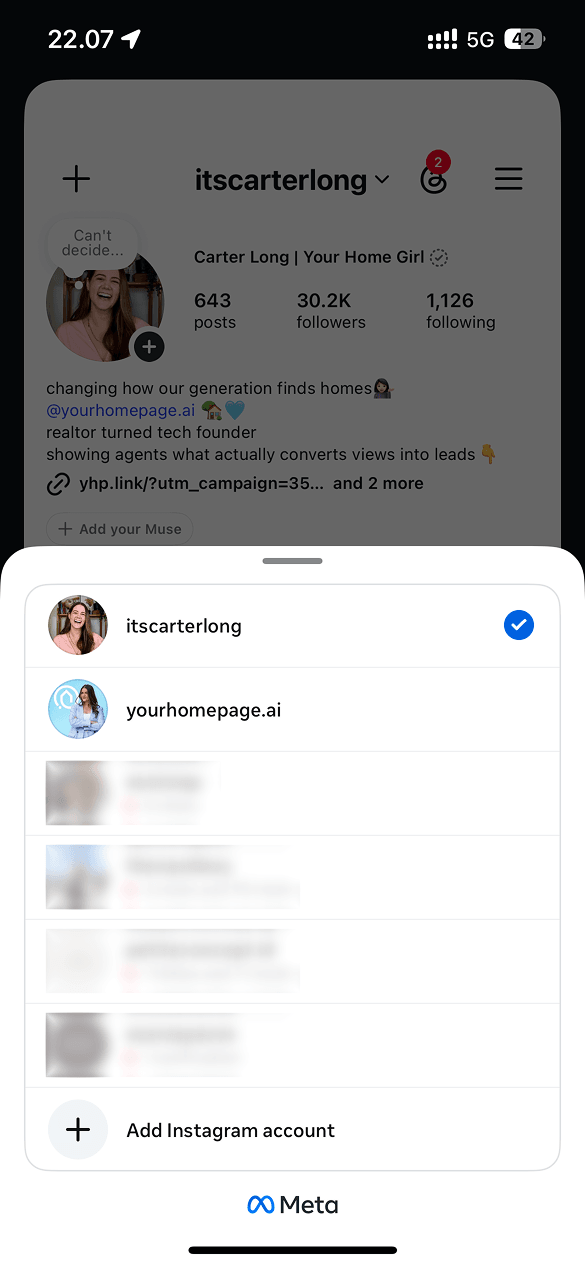
Then go back to the steps above to reconnect so the permissions apply to that account.
Why we ask for each permission
- Basic profile info: shows your connected account and profile details.
- Manage comments: sees keyword comments on your posts so automations can respond.
- Manage messages: sends and replies to DMs from your automations.
We only use these permissions to run the automations you set up. We never post, comment, or message anyone on your behalf unless one of your automations tells us to.
Still stuck?
Reach out to our support team at support@yourhomepage.ai or use the chat bubble in your portal. Include your Instagram handle and a screenshot of what you're seeing, and we'll get you sorted out quickly.