What's happening
If your DM automation starts but doesn't finish sending, this is most likely an Instagram or Facebook permissions setting.
Instagram and Facebook give you separate controls over which outside tools — including Your Home Page — are allowed to read and send messages inside your DM threads. If one of these settings is off or incomplete, the first message in a flow can sometimes still go out, but the rest of the automation won't continue. From your side, it looks like the flow "starts but never finishes."
This is one of the most common setup issues across every DM automation tool, not just Your Home Page. It happens because Instagram treats access for outside tools as opt-in, and that access can live in two different places depending on how your account was set up.
How to fix it
There are two settings to check, in order. Most subscribers only need Step 1. If DMs still don't complete after that, move on to Step 2.
Instagram reorganized this menu recently — the old path (Settings → Privacy → Messages → Connected tools) no longer exists on current app versions. The steps below reflect where the setting actually lives now, confirmed on a live Creator account. Meta changes these menus fairly often, so the exact tap-path may shift again. If a screen doesn't match what's pictured, look for a setting with a similar name and purpose — the underlying settings (message access, and the ability to take control of a conversation) stay the same even when Meta moves them around.
Step 1: Check app permissions in Instagram
This is a per-app permission list — similar to the Business Integrations screen on Facebook, but built into Instagram directly.
- Open the Instagram app, go to your profile, and tap the menu icon (☰, top right).
- Tap Settings and activity.
- Scroll down to App website permissions (it sits under "Your app and media," separate from Messages and story replies).
- Tap Apps and websites.
- On the Active tab, find Your Home Page in the list.
- Tap View and Edit, then look for Access your business message information in the list.
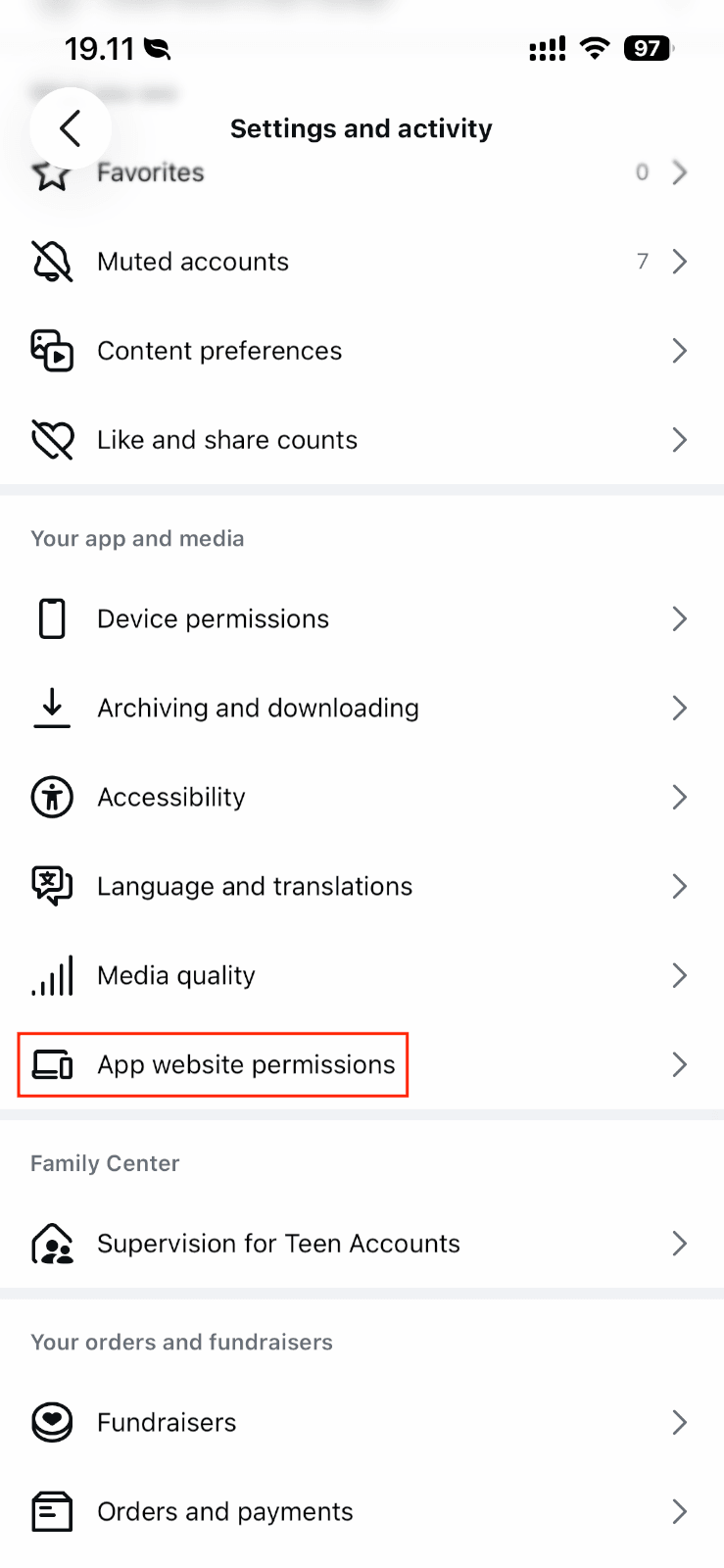
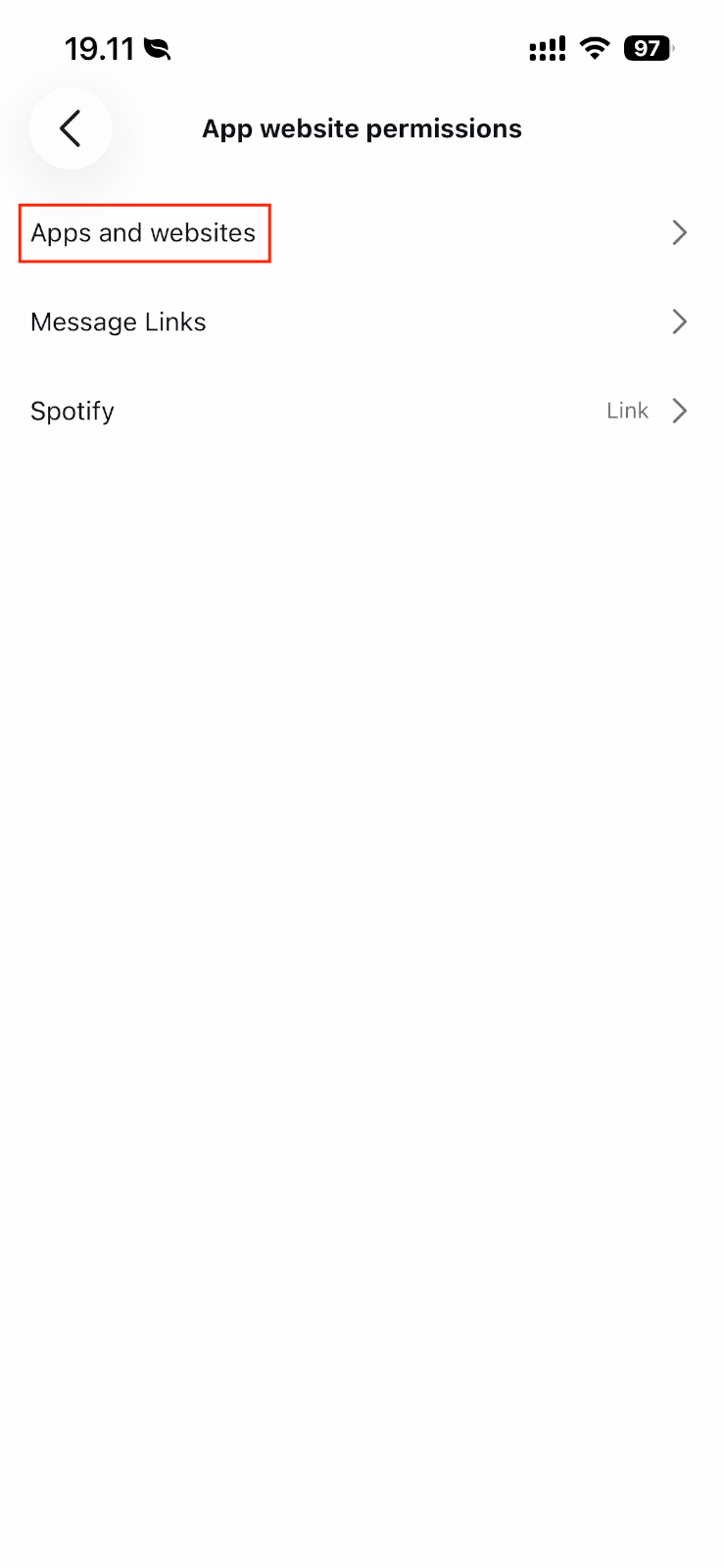
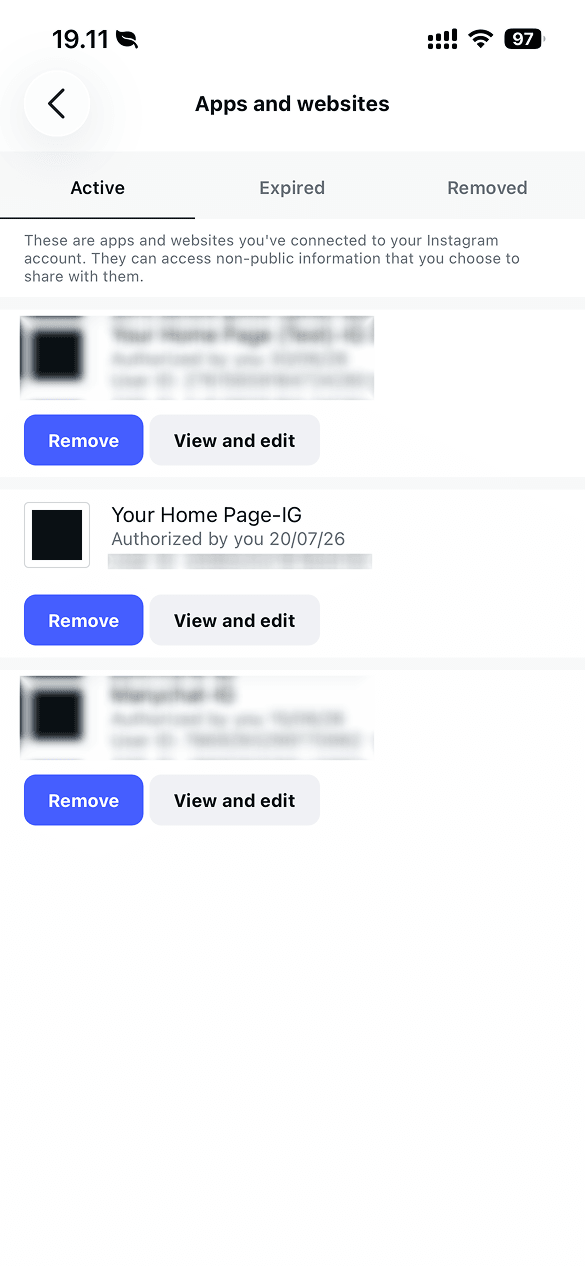
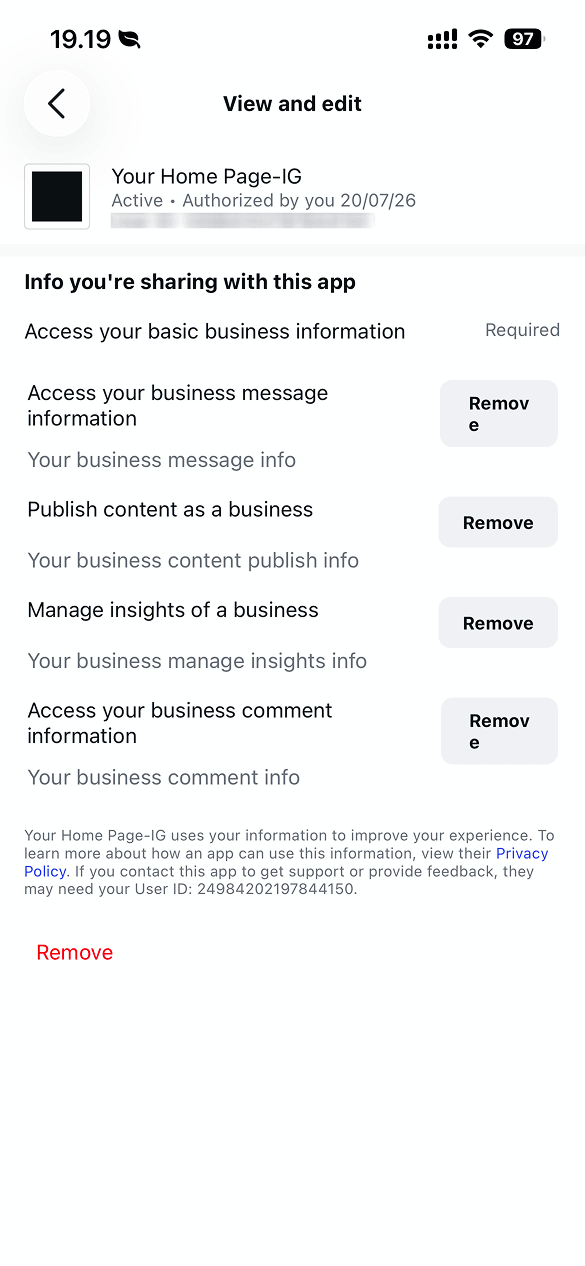
If Access your business message information is already listed (with a Remove button next to it), messaging access is already granted — this isn't the issue. Move on to Step 2.
If it's missing from the list, this screen won't let you add it directly — there's no toggle to switch on, only Remove buttons for what's already granted. Tap Remove at the very bottom to fully disconnect Your Home Page, then reconnect your Instagram account from inside Your Home Page and approve message access when the permission screen appears.
Wait a few minutes, then test your automation again.
Step 2: Turn on "Take control of conversations"
Instagram lets more than one connected app sit on the same inbox (for example, YHP alongside a CRM or another automation tool), but only one app can actively send messages in a conversation at a time. Even with message access granted (Step 1), Your Home Page also needs permission to take over and continue a conversation. Without it, YHP can see the conversation happening but can't take the wheel to send the rest of the flow — which is exactly why a flow starts and then stalls.
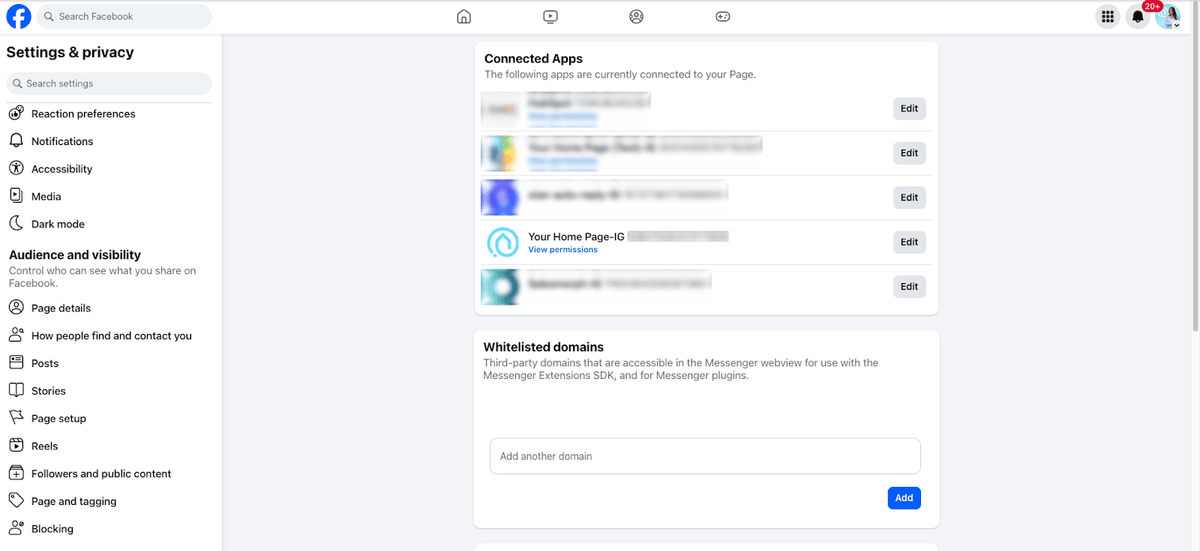
- Log in to Meta Business Suite on a desktop browser and open your Page's settings.
- Go to Page setup → Connected Apps.
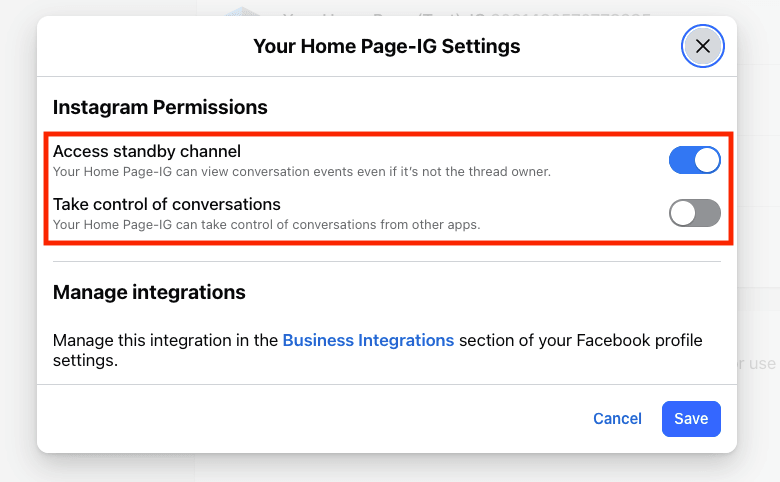
- Find Your Home Page-IG in the list and click Edit.
- Turn on Take control of conversations. (Access standby channel should already be on — that one just lets YHP see the conversation, not send in it.)
- Click Save, then test your automation again.
If you have other DM tools connected to the same Page (another chatbot, a CRM's Instagram integration, and so on), only one of them can hold control of a conversation at a time. Consider removing any DM automation tools you're no longer using so they don't compete with Your Home Page for control.
Still stuck?
If DMs still aren't completing after both steps, reach out to support@yourhomepage.ai and we'll take a look with you.